Free Minecraft Pixel Art Generator
Turn any photo or text prompt into Minecraft pixel art you can actually build. AI maps every pixel to a real block, then exports PNG, material lists, .schematic, and .litematica straight to your world.
Drop an image here
or click to browse · PNG / JPG / WebP up to 8MB
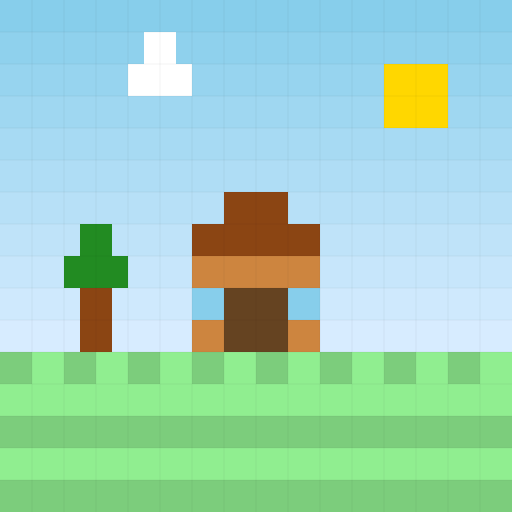
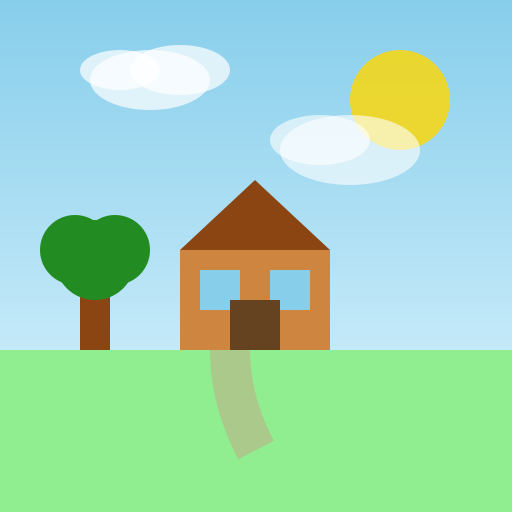
Why builders choose our Minecraft pixel art generator
The only Minecraft pixel art generator that combines real AI image recognition, current-version block palettes, and direct in-game export for authentic builds.
Real AI-powered pixel art generation
Most Minecraft pixel art generators use simple RGB color matching. Our AI-powered generator understands subjects and edges, creating authentic pixel art where a cat looks like a cat — not a muddy blob.
Export straight to your world
Download a .schematic, .litematica, or CSV material list and build it in survival or creative. Every block is already counted out for you.
Always current-version
We track the latest Minecraft block palette automatically. No more generators frozen at 1.12 — build with the colors the game actually ships today.
From photo to build in four steps
Under a minute to pixel art you can place block by block.
Upload or describe
Drop any photo or type what you want to see. A selfie, a logo, a landscape — anything works.
Start generating pixel art — free →
Pick resolution & palette
Choose 16×16 up to 128×128 and a block set — concrete for clean color, wool for soft, terracotta for earthy, or all of them.
Start generating pixel art — free →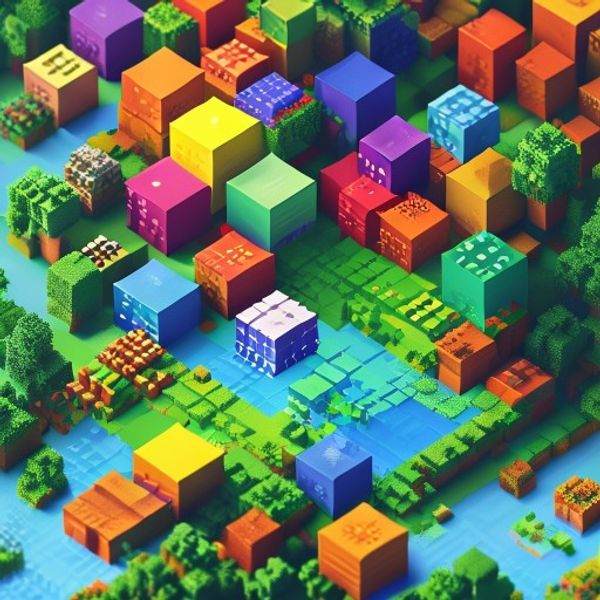
AI generates Minecraft pixel art
Our Minecraft pixel art generator creates the pixel art, enforces a clean pixel grid, then maps every pixel to the closest Minecraft block with optional dithering for smooth gradients.
Start generating pixel art — free →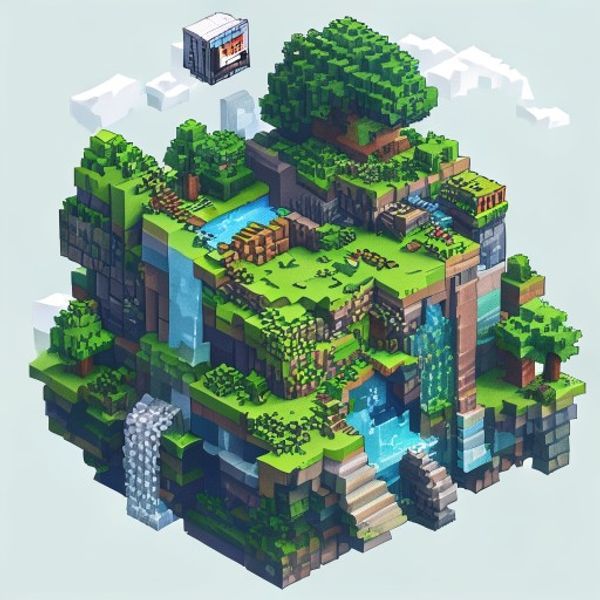
Export & build
Grab the PNG preview, the material list, the .schematic, or the .litematica file and start placing blocks in your world.
Start generating pixel art — free →What you can build with this Minecraft pixel art generator
From server spawn art to survival map art, see what builders create with our pixel art generator.
Minecraft pixel art portraits
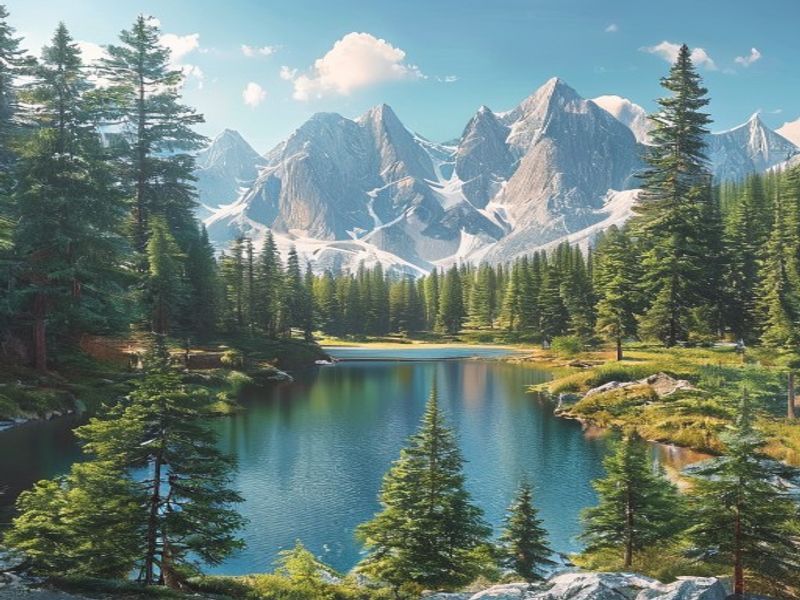
Transform any portrait into blocky Minecraft pixel art for your base wall or server spawn entrance.
Start generating pixel art — free →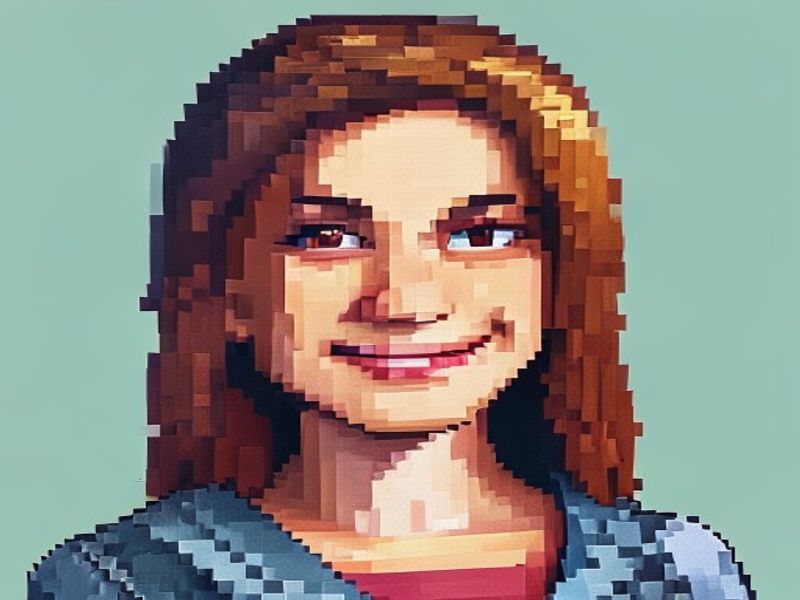
Survival Minecraft map art
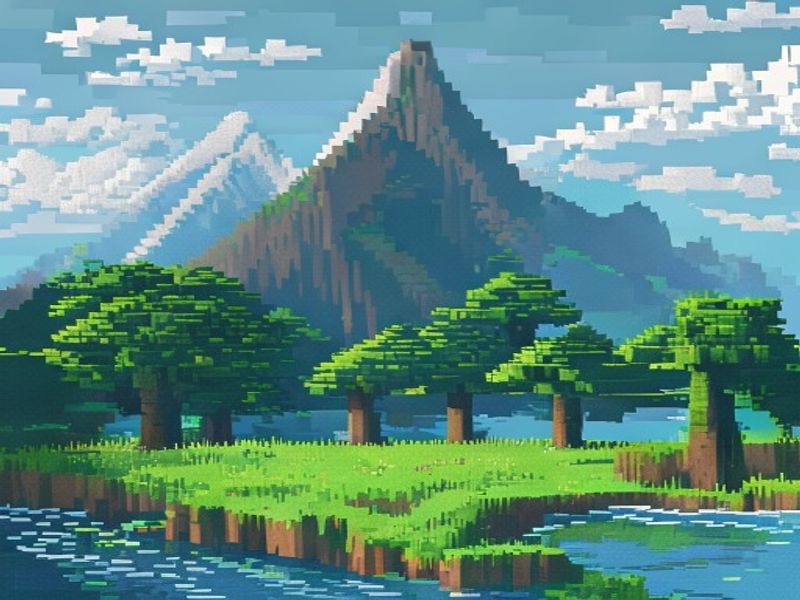
Generate 128×128 Minecraft pixel art, export the material list, and recreate it block by block on a map item for authentic survival builds.
Start generating pixel art — free →Why use our Minecraft pixel art generator?
Building large Minecraft pixel art by hand is slow and error-prone. Our AI-powered Minecraft pixel art generator does the heavy lifting while ensuring your pixel art actually looks good in-game.
- Save hours with automated pixel art generation: A 64×64 Minecraft pixel art piece is 4,096 blocks. Our generator creates the layout and exact block counts in seconds — no spreadsheets or manual planning required.
- AI-powered Minecraft pixel art that preserves subjects: Unlike basic generators that match colors pixel-by-pixel, our AI understands image structure. Your Minecraft pixel art maintains recognizable features like eyes, silhouettes, and logos.
- Real in-game export: A PNG you can only look at is half a tool. Exporting a .schematic or .litematica means you can load the build into WorldEdit or Litematica and place it in your actual world — survival or creative.
- Survival-ready material lists: Want to build it for real? The material list tells you exactly how many of each block to gather before you start, so you do not run out halfway through a wall.
- Always on the current version: Minecraft keeps adding blocks and colors. Generators frozen at version 1.12 cannot use concrete or the newer dye colors. A maintained generator keeps up.
How to make Minecraft pixel art from a photo
It takes four steps and under a minute.
- 1. Upload your image: Pick a photo with a clear subject and good contrast — portraits, logos, and sprites work best. Our image to Minecraft pixel art converter supports PNG, JPG, and WebP files up to 8MB.
- 2. Choose a resolution: 16×16 for tiny sprites, 32×32 for classic pixel art, 64×64 for detail, and 128×128 for full map art. Higher resolution means more blocks to place.
- 3. Pick a block palette: Concrete gives the cleanest, most saturated colors. Wool is softer and brighter. Terracotta is muted and earthy. Use All blocks for the widest color range.
- 4. Generate and export: Hit generate, then download the PNG to preview, the CSV material list to plan, and the .schematic or .litematica to build it in your world.
Tips for great Minecraft pixel art
Small choices make a big difference at low resolutions.
- Start with a clear subject: Busy backgrounds get quantized into noise. Crop tightly to the subject before uploading — a face, a logo, a single object reads much better at 32×32.
- Match resolution to detail: A landscape crammed into 16×16 will be mush. Use 64×64 or 128×128 for complex images; keep 16×16 for simple icons and sprites.
- Choose dithering on purpose: None gives the crispest, most cartoony look. Floyd–Steinberg smooths gradients (skies, skin). Ordered dithering adds a retro cross-hatch texture.
- Try the All-blocks palette: Concrete alone is clean but limited. The full palette pulls in wool, terracotta, and naturals for noticeably wider color coverage on photos.
- Use the material list in survival: Before you start placing, gather exactly what the CSV says. Concrete is cheap to craft in bulk; dyed blocks need the right flowers or mobs.
Minecraft Pixel Art Generator FAQ
Common questions about our AI-powered Minecraft pixel art generator.